
How to upgrade to a Team or Business subscription
CorZen offers three subscription tiers: Free Forever, Team, and Business. Upgrading unlocks additional project collaborators, more active and archived projects, and elevated support priority.
Plan Comparison
| Feature | Free Forever | Team — $5/person (billed annually) | Business — $15/person (billed annually) |
| Collaborators per project | 1 (owner only) | Up to 5 | Up to 20 |
| Active projects | 1 | Up to 4 | Up to 8 |
| Archived projects | — | Up to 6 | Up to 20 |
| View/Edit as collaborator | — | ✓ | ✓ |
| Manage projects as Project Owner | — | ✓ | ✓ |
| Support | Community | Priority | First Priority |
Note
All paid plans are billed annually (per person, per year). The Team plan is $60/person per year ($5.00/month equivalent). The Business plan is $180/person per year ($15.00/month equivalent).
Path 1: Upgrading from Free Forever directly to Team or Business
Step 1: Open Your Profile
From anywhere in CorZen, click your name or the Profile link at the bottom of the left navigation sidebar. Your current plan is shown at the very bottom of the sidebar as “Free Forever.”
Step 2: Click “Upgrade to Team or Business”
On the Your Profile page, scroll below your email address and click the blue link labelled Upgrade to Team or Business. This opens the Upgrade Your Plan screen.
Step 3: Review Your Current Plan
The top of the screen displays your Current Plan (Free Forever) along with your current project usage, for example, “1 / 1 active projects.” Review this to confirm you are on the correct account before proceeding.
Step 4: Select the Team Plan
In the Choose Your Plan section you will see two options:
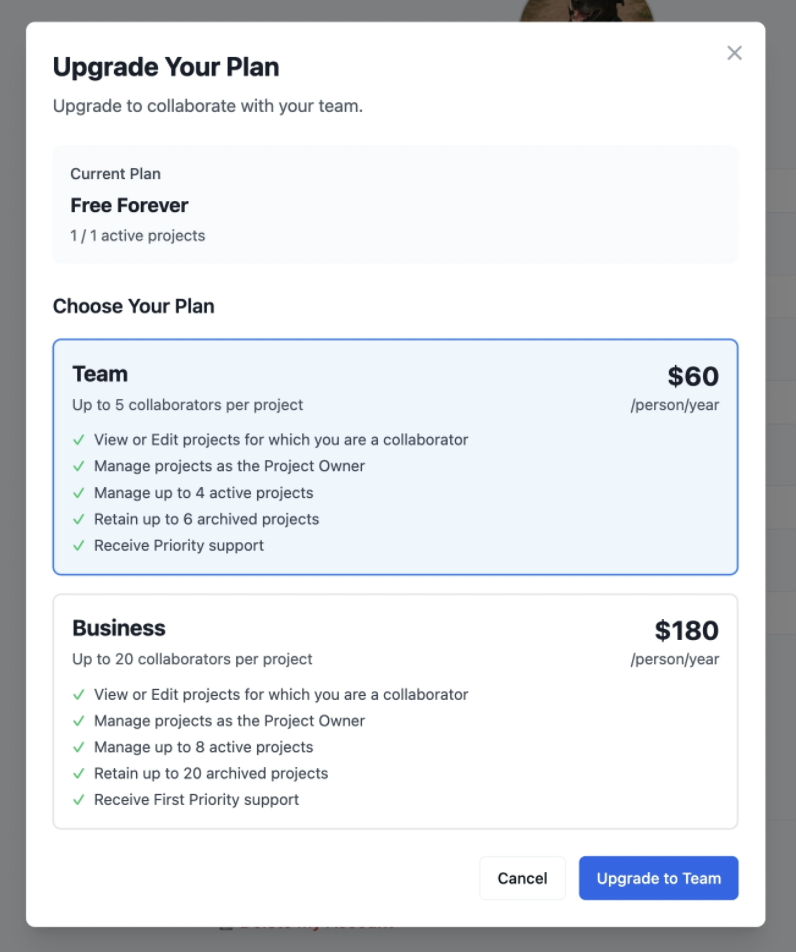
Click anywhere on the Team card to select it. The card will highlight with a blue border and the action button in the bottom-right of the modal will update to read Upgrade to Team. You can also upgrade directly to Business by clicking on the Business card. The button at the bottom will update to say ‘Upgrade to Business.’
Step 5: Click “Upgrade to Team”
Click the Upgrade to Team or Upgrade to Business button. The button label changes to Redirecting to Checkout… and CorZen opens the Stripe-powered checkout page in the same browser tab.
Step 6: Complete Checkout (Stripe)
The Stripe checkout page shows the subscription summary on the left: Subscribe to CorZen Team License or Subscribe to CorZen Business License, described as an Annual project management license.
Your account email is pre-filled in the Contact information field. Complete the Payment method section by choosing one of the following options:
- Card (Visa, Mastercard, and others): enter card number, expiry date, CVC, cardholder name, country, and ZIP code
- Link: fast checkout using your saved Stripe Link credentials (green button at the top)
- Pay with Amazon: use your Amazon account (yellow button at the top)
- Cash App Pay
- Klarna
Once all fields are filled in, click Subscribe. The button changes to Processing while the payment is authorized.
Step 7: Subscription Activated
After successful payment, CorZen redirects you to a full-page confirmation screen displaying:
- A green checkmark icon
- Subscription Activated!
- “Thank you for subscribing to CorZen!”
- “Your account is now active. You can manage your subscription anytime from your profile.”
Two buttons are presented: Go to Dashboard and View Profile. Click Go to Dashboard to return to your projects. The plan label in the bottom-left of the sidebar will now show Team or Business instead of Free Forever.
Path 2: Upgrading from Team to Business
Once you are on the Team plan, upgrading to Business does not require a new Stripe checkout. The upgrade is handled inline on the Your Profile page using your existing payment method on file.
Step 1: Open Your Profile
Click Profile in the bottom-left of the sidebar. Your profile now shows additional subscription information below your email address, including:
- “Leveraging the best strategies since [your start date]”
- “Subscription renews on [renewal date]”
- “Modify subscription” link to manage your current Team subscription
- “Upgrade to Business” link to initiate the plan upgrade
Step 2: Click “Upgrade to Business”
Click the Upgrade to Business link. A prorated billing summary appears inline on the profile page under the heading Confirm upgrade to Business.
Step 3: Review the Prorated Billing Summary
Because you are upgrading mid-billing-period, CorZen calculates a prorated charge. The example below shows the three line items you would see if you decided to upgrade to Business on the same day as you purchased a Team subscription:
| Line item | Amount (example) |
| Unused time on CorZen Team License after [upgrade date] | −$60.00 (credit) |
| Remaining time on CorZen Business License after [upgrade date] | $180.00 |
| Due today | $120.00 |
| Charged to | Visa •••• [last 4] |
Note
The due-today amount is the difference between the Business and Team annual prices, prorated for the remainder of your current billing period. In the example shown in the video, the charge is $120.00 — the $180 Business cost minus the $60 Team credit for unused time because the upgrade from Team to Business was purchased on the same day as the upgrade from Free Forever to Team. In this example, the full amount of the Team subscription was applied to the Business subscription.
Step 4: Click “Confirm — Pay $[amount]”
If the amounts look correct, click Confirm — Pay $[amount] (e.g. Confirm — Pay $120.00). The Profile page enters a Processing… state.
Step 5: Upgrade Processing
A brief message appears: Your upgrade is being processed. Refresh the page in a moment to confirm. CorZen processes the upgrade in the background using your card on file — there is no redirect to Stripe for this path.
Step 6: Confirm the Upgrade
Refresh the Your Profile page. You will see that the Upgrade to Business link has been replaced by updated subscription details reflecting the Business plan. The plan label in the bottom-left sidebar will now show Business.
Accepted Payment Methods
The following payment methods are available at Stripe checkout when upgrading from Free Forever to a paid plan:
| Method | Details |
| Credit / Debit Card | Visa, Mastercard, and other major cards. Enter card number, MM/YY expiry, CVC, cardholder name, country, and ZIP. |
| Link | Stripe’s one-click checkout. Saves your payment info for faster future purchases across all Link-enabled merchants. |
| Pay with Amazon | Use your Amazon account billing details. |
| Cash App Pay | Pay via Cash App. |
| Klarna | Buy now, pay later option. |
Note
When upgrading from Team to Business, your existing card on file is charged automatically. No new payment details are required.
Your Profile After Upgrading
Once on a paid plan, your Your Profile page displays additional information that was not visible on Free Forever:
- Plan start date: “Leveraging the best strategies since [date]”
- Renewal date: “Subscription renews on [date]”
- Modify subscription: Link to adjust your existing plan via Stripe’s billing portal
- Upgrade to Business: (Team plan only) Link to upgrade to the Business tier
Note
“Modify subscription” lets you update your payment method, view billing history, or cancel your subscription. “Upgrade to Business” disappears once you are already on the Business plan.
FAQs
Use the Modify Subscription link on Your Profile page to manage your subscription through Stripe’s billing portal. Downgrade options are handled there. Refunds are not provided for unused time when downgrading, but the next annual renewal will occur at the downgraded price.
The upgrade screen presented to Free Forever users shows both Team and Business plans side by side, so you can select Business directly from Free Forever without first upgrading to Team. The checkout flow is the same.
All paid plans are billed annually. Team is $60 per person per year ($5/month). Business is $180 per person per year ($15/month). There is no monthly billing option.
Yes. Once you click Confirm — Pay, CorZen processes the upgrade using your card on file. A brief processing message is shown, and refreshing your Profile page confirms the upgrade. There is no waiting period.
This link only appears for accounts on the Free Forever plan. If you are already on a paid plan, it is replaced by Modify Subscription and (if applicable) Upgrade to Business. If you cannot see any upgrade option and believe this is an error, contact CorZen Support at core@corzen.com or use the Contact Support link in the left navigation sidebar.
CorZen automatically calculates a proration. You receive a credit for the unused days remaining on your Team license, and that credit is applied against the cost of the Business license for the same period. You only pay the difference. This is clearly shown in the “Confirm upgrade to Business” summary before you confirm payment.
Pricing is per person per year. Each team member added to a project on a paid plan requires their own seat. The account owner is responsible for managing and paying for their own seat. Check with your organization’s billing administrator for how team seat costs are handled internally.